
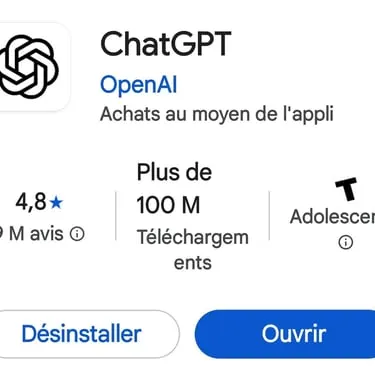
Install the official application
Start with the ChatGPT application published by OpenAI on Google Play. Check the publisher and update the application. Open it directly to confirm sign-in and the features you need before changing a system setting. Official Android application help
Review compatible assistants
In your phone’s settings, find default applications and the digital-assistant section. Names and paths can vary by manufacturer and Android version. Review the displayed list. If ChatGPT appears, you can select it and try the activation gesture or button used by your device.
If it is absent, avoid installing a file from an unknown source to force the integration. Use the application directly and check the manufacturer’s help. Assistant choices depend on compatible applications recognized by the system. Managing the default digital assistant
Check necessary features
Test a short voice conversation and the commands you actually use. Opening an application through a system shortcut does not establish that it has every integration offered by your previous assistant.
Review microphone permission too. Grant access needed for the task and observe what works while the phone is locked or offline. Try a normal listening environment before relying on the feature outside your home.
Keep a route back
Record the previous setting before changing it. If an important function becomes unavailable, return to the same list to restore your choice. Compare a few everyday tasks instead of assuming one assistant automatically replaces another in every respect. Available options can change after application and system updates, so review the setup again when behaviour changes.