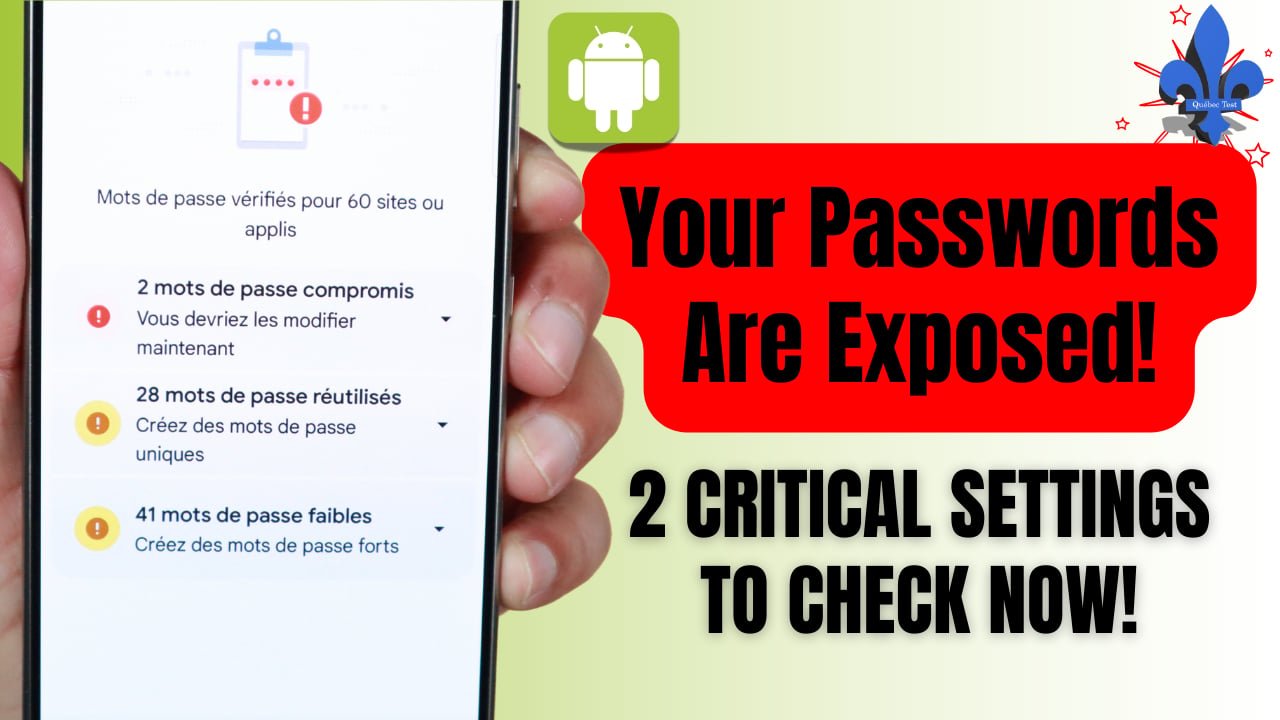
A password may be reused across accounts or appear in compromised data. Google’s built-in check helps identify some of these issues among saved credentials. It does not replace monitoring each account.
Open Password Checkup
In Chrome on Android, open Settings, the password section and Google Password Manager, then select Checkup. You can also search for the password manager in phone settings. Paths vary by software version.
Address each finding
Start with sensitive accounts such as your primary email. Open the service’s website or app directly and replace the affected password with a unique one. Review recovery methods and active sessions. Enable an additional protection offered by the service, such as a passkey or two-step verification.
Reduce on-screen exposure
If your phone offers temporary display of typed password characters, choose the setting that suits your environment. Hiding them can reduce exposure to someone watching your screen. It does not repair an already compromised password.
Avoid fake alerts
Open the password manager yourself instead of following an alarming email or text link. A clean result means only that this particular check found no known issue within its scope.
Video demonstration
Video from the original publication. Refer to the revised instructions in this article when a setting or procedure differs.