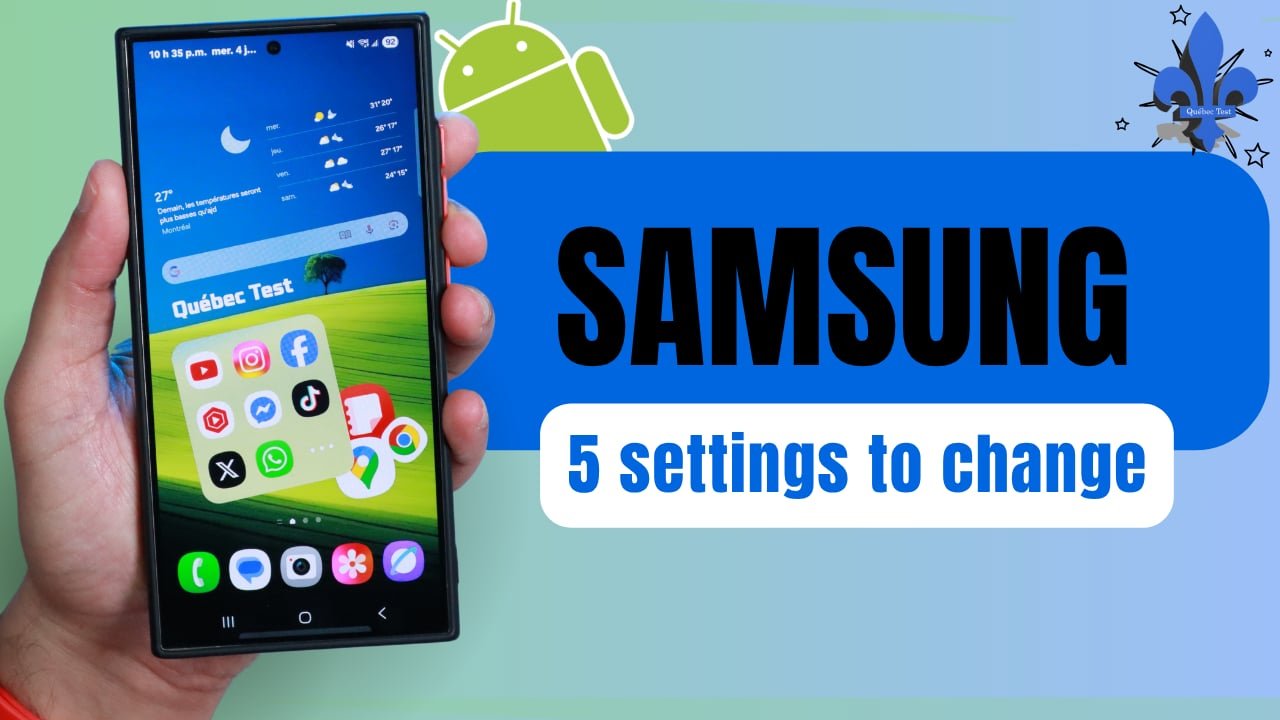
One UI 7 changed several navigation conventions on supported Galaxy devices. A few settings can help restore an arrangement that fits your habits. Exact options depend on the device and installed software.
Organize panels and apps
- Notifications and Quick settings. In the separate layout, swipe from the left for notifications and from the right for the Quick panel. Supported models offer a combined view in the panel’s editing options.
- App ordering. Review alphabetical sorting in the Apps screen. On One UI 7 it provides vertical scrolling. Choose an arrangement you can navigate easily.
Adjust controls
- Side button. Under Advanced features, find Side button. Review long-press and double-press actions separately, then test the result.
- Quick shortcuts. Put frequently used controls first. Remove ones that clutter the panel without switching off the feature across the system.
Improve home-screen readability
The fifth setting concerns the home-screen layout, icons and widgets. Start with built-in options. If those are insufficient, review the official Good Lock modules available for your model.
Validate each change
Record the original setting and test one change at a time. Useful customization makes everyday actions easier. It is not a measured improvement to speed or battery life.
Video demonstration
Video from the original publication. Refer to the revised instructions in this article when a setting or procedure differs.