
Read the selection in context
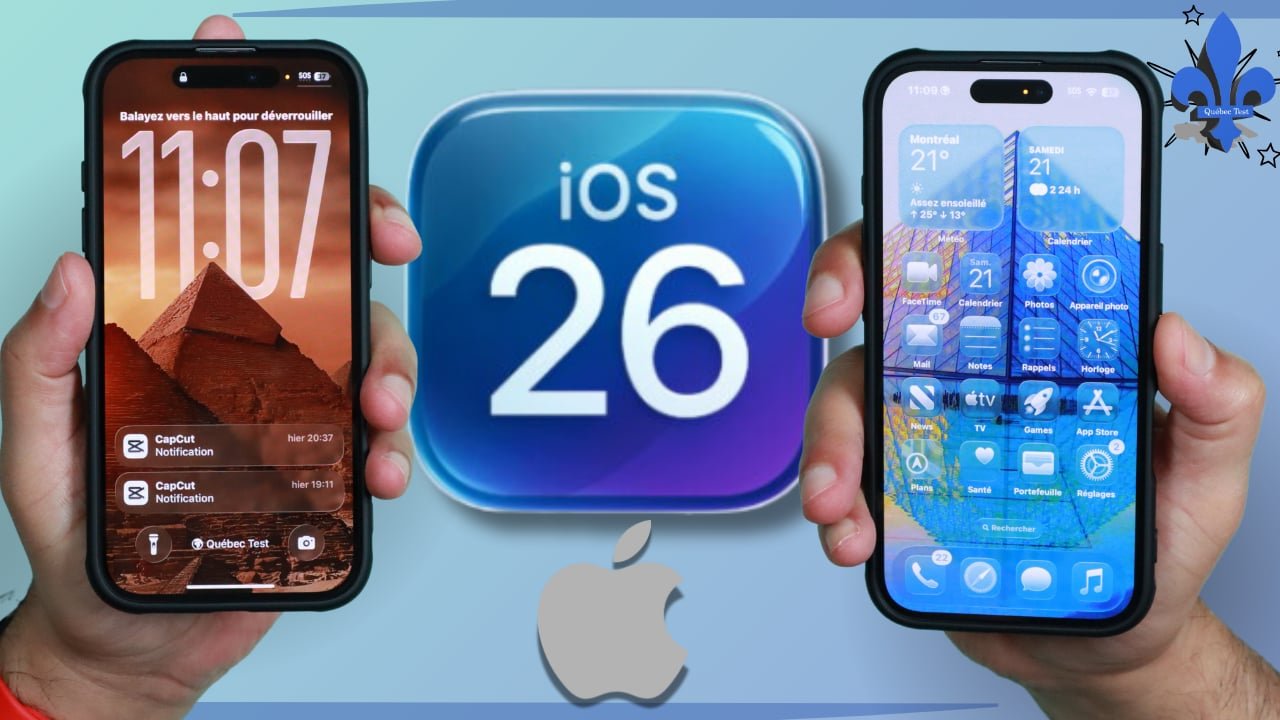
This guide covers features introduced with iOS 26. Calling them hidden should not imply they are secret or restricted to special accounts. Some options are simply located in an app or menu you rarely use. Names and locations can change after an update. Start by checking the version installed on the phone, especially when following instructions originally written for the 2025 release.
Separate interface changes from AI features
Liquid Glass is part of the visible interface update. Features relying on Apple Intelligence require a separate check of model, language and region. A demonstration on eligible hardware does not establish that every iPhone capable of running iOS 26 will offer the same option. Consult requirements for the individual feature before trying to find its controls.
Explore features in a practical setting
Apple’s official feature document organizes changes by app and area. Start with tasks relevant to you, such as communicating, organizing information or adjusting the interface. Try a feature on low-stakes content before relying on it for important work. Review results generated by AI tools.
- Find the control in the relevant app.
- Check Apple’s prerequisites.
- Test its effect on a simple example.
- Restore the previous setting if the result does not suit you.
Judge everyday usefulness
A useful feature makes a real task easier. Its value depends on individual habits, and announced capabilities may evolve or roll out gradually. For current instructions, consult help for the version you actually use. Keep the 2025 announcements as context for the origins and release timeline of those changes. A feature list is a starting point for exploration rather than a requirement to change every setting.
Video demonstration
Video from the original publication. Refer to the revised instructions in this article when a setting or procedure differs.