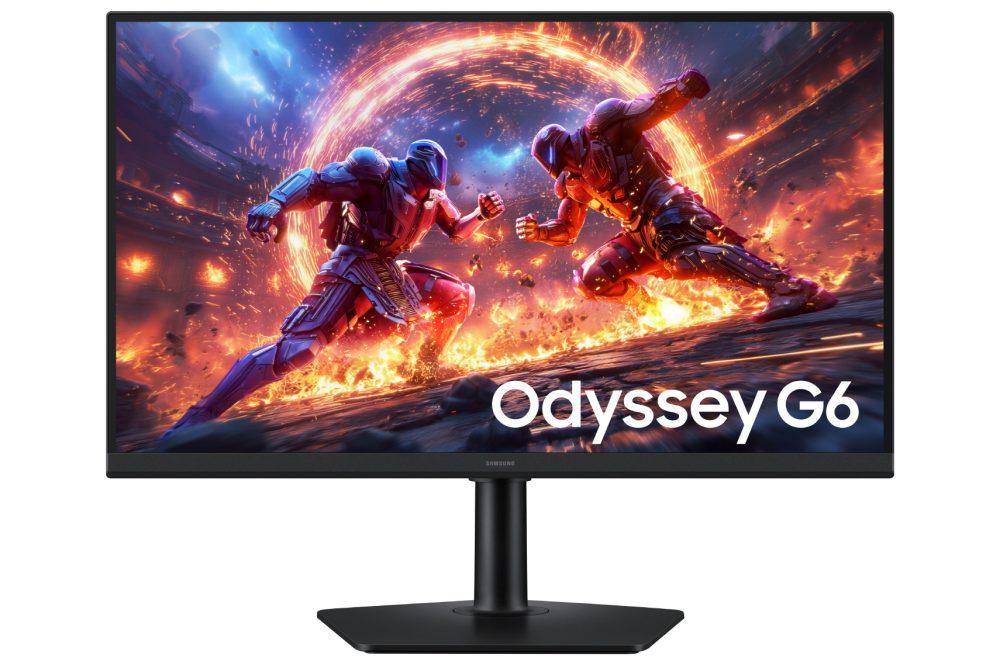
Samsung announced the 27-inch Odyssey G6 G60H gaming monitor on November 23. Its headline feature is a choice between two modes: QHD at up to 600 Hz or HD at up to 1,100 Hz. If you are shopping for a gaming display, the important question is which mode would actually help in the games you play. Getting the highest refresh rate requires giving up some detail, and your computer still has to keep pace.
The specifications that matter
- Screen: 27-inch Fast IPS panel.
- QHD mode: 2,560 × 1,440 pixels at up to 600 Hz.
- HD mode: reduced resolution at up to 1,100 Hz.
- Pixel response: Samsung quotes 1 ms grey-to-grey.
What refresh rate tells you
Hertz measures how often a display can refresh each second. Frames per second measures how many images a game delivers in the same time. If your computer is producing 180 frames per second, a 1,100 Hz monitor will still receive about 180 distinct frames per second from the game. The screen’s timing can affect how promptly a frame is displayed, but increasing the monitor’s refresh rate will not make the graphics card draw frames faster. This is why checking real performance in your favourite games is more useful than comparing the biggest numbers on two boxes.
At 600 Hz, the theoretical interval between refreshes is around 1.67 milliseconds. At 1,100 Hz, it is around 0.91 milliseconds. The difference of roughly 0.76 milliseconds describes the display’s refresh cadence. Your complete input-to-screen delay also depends on your mouse or controller, how the game processes input, how long the PC takes to render an image and the monitor’s own processing. The quoted grey-to-grey time measures a change in pixel shade. It serves a different purpose from either the refresh interval or the total delay you feel when playing.
Start in QHD, then try HD where it makes sense
For racing, exploring an open world or sharing a screen between work and play, QHD is a sensible starting point. The additional detail helps you read small text, pick out distant objects and keep several windows open. The QHD mode already supports a very high refresh rate. If lowering the resolution makes a game’s map, menus or distant targets harder to read, those everyday drawbacks may matter more to you than the faster screen updates.
HD is worth trying in a competitive shooter if you have a fast PC and spend enough time in the same game to notice small differences. Compare the two modes on the same map with the same viewing distance and settings. Try following an opponent moving sideways across the screen. Then check whether you can still identify a target at the far end of the map. If the faster mode feels smoother but makes faraway targets harder to identify, the better setting depends on the situations you run into most often.
Run a simple test on your own PC
- Pick a repeatable scene, such as the same race, training course or built-in benchmark. Keep the graphics settings consistent so the resolution is the main change.
- Run it more than once at each resolution. Note the average frame rate and pay attention to dips when the action gets busy. A steady frame rate often feels better than one that briefly peaks and repeatedly drops.
- If you try the G60H in person, check the active refresh rate in Windows Advanced display settings after switching modes. A setting carried over from the previous mode can skew your comparison.
- Use one repeatable visual task, such as tracking a car around a bend, and compare how easily you can follow it. Take the same approach with menu text, a minimap or a distant character.
A faster screen will not fix interruptions caused by loading, unstable network connections or an overloaded processor. Lowering resolution generally gives the graphics card fewer pixels to draw. If your processor is already the bottleneck, the difference in frame rate may be small. That is a useful result in its own right: it tells you which part of the setup deserves a closer look before you put money into a new display.
Check the connection before blaming the monitor
On a desktop with a dedicated graphics card, first check that you have plugged the monitor into the output you intend to use. With a laptop, check the specifications for the exact port, especially if you connect through a docking station. The same connector can support different display capabilities depending on the computer. A dock or adapter can also impose its own limit. If the expected refresh rate does not appear, start with a direct connection and consult the monitor documentation for the cable and output requirements for that mode.
Finally, protect your ability to compare. Save a stable graphics preset before changing settings and make one adjustment at a time. When you switch resolution, some games also change their rendering scale or switch from full-screen to borderless mode. Check those options so your two runs reflect the display modes you meant to test.
Who should consider it?
The best fit is a competitive PC player who already owns fast hardware and wants to compare modes across several games. If you split your screen time among web browsing, photo editing, video and occasional gaming, weigh the display against practical priorities such as text clarity, viewing comfort and price. The same applies if your current computer already struggles to run your games smoothly. An upgrade that helps it deliver steadier frames may matter more in everyday use than raising the display’s maximum refresh rate.
Before ordering, check Samsung’s requirements for the top refresh rates and compare them with your graphics card’s available outputs. Search Canadian retailers for the full G60H model number because the Odyssey G6 name covers several displays. If you can test one locally, begin with the settings you would use at home. Samsung’s main idea here is a useful one even if you never switch to 1,100 Hz: the choice lets you decide whether a particular game benefits more from extra detail or a faster display cadence.