Samsung announced on November 24 that the Galaxy Watch8 and Watch8 Classic are gaining health and fitness features previously introduced on newer watches. The One UI 9 Watch rollout began on November 23, according to Samsung. It also adds a portrait watch face and improvements to the compass. Some features need several days of data, while others are ready to try as soon as they appear. Here is a practical way to work through the update.
Start with the compass and watch face
The Portrait Watch Face is a quick way to see a visible change. Samsung says the feature recognizes people in photographs and positions the clock and background around them. Choose a photograph that leaves some room around the faces, then check how easily you can read the time at a glance. A picture that looks excellent on a phone may be difficult to read once it has been cropped to fit a small, round display.
The updated compass lets you save a waypoint. That could be where you parked or the spot where you plan to meet up again. Try it somewhere familiar before relying on it on a trip. Save the starting point, walk a short distance and see how the watch presents the way back. Samsung also describes Track Back, which helps you follow a recorded route back to where you started. Think of a waypoint as a place and a recorded route as the path you took to get there.
What the four new views show
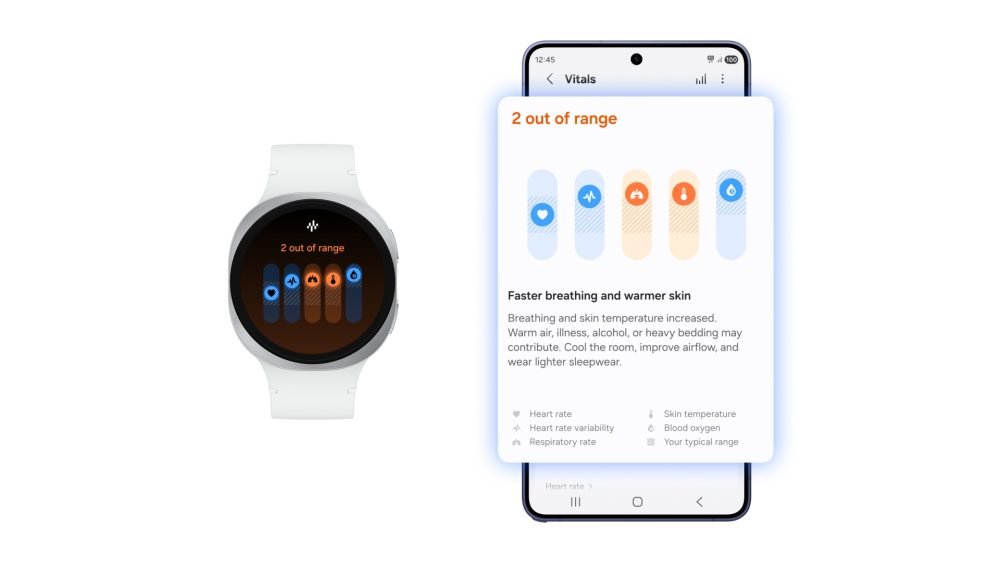
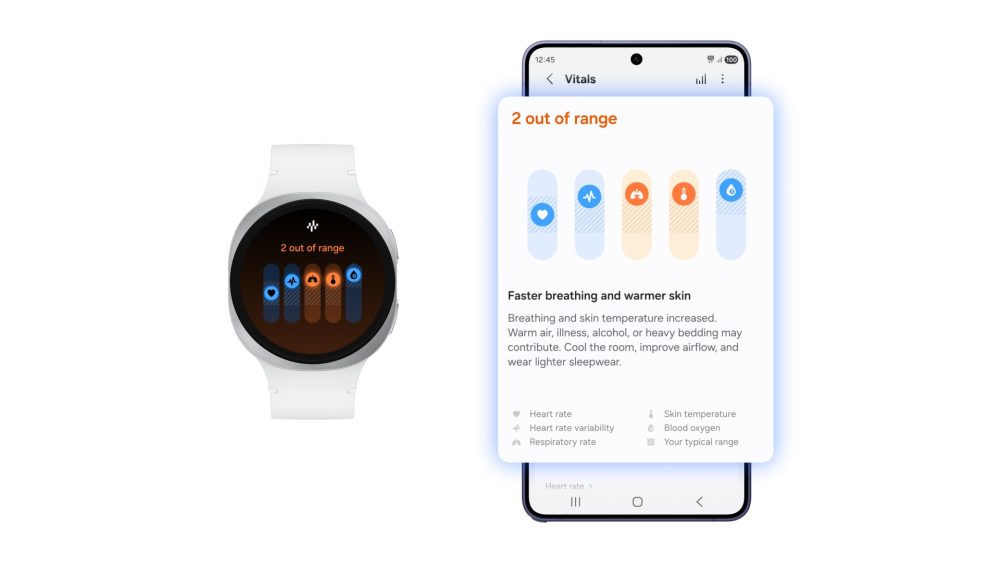
- Vitals brings together five measurements collected while you sleep, including heart rate, breathing rate and skin temperature. Samsung says it needs at least seven nights of sleep data.
- Heart Health Score presents changes in a score related to daily habits. Samsung specifies a compatible Galaxy phone and an initial period of 24 hours of wear, including time asleep and awake.
- Daily Cardio Load estimates strain from workouts and everyday activity and suggests a load range. Samsung specifies at least seven days of activity records.
- Fitness Index combines several measurements into one overview. It needs body composition and estimated aerobic fitness measurements, along with some activity and step data.
Each view depends on different inputs. If one opens immediately and another shows an empty screen, check what each needs before changing your setup. A number from a consumer watch is best used in the context of your own routine. Samsung explicitly says these health features are not intended to diagnose or treat medical conditions.
What to expect from the sleep coach
The updated Sleep Coaching feature can start with three days of tracked sleep in a 14-day period. Samsung lists Samsung Health 7.1 or newer and a compatible Galaxy phone running Android 11 or later among its conditions. Its guidance can change as your sleep patterns change. If you want to understand what the app makes of a typical week, start during a period when your bedtime and wake-up time look roughly like your usual routine.
It is easy to confuse coaching with Vitals because both draw from overnight measurements. Coaching can start with fewer nights, and its goal is to help you build habits. Vitals collects several measurements together for you to review. If the coaching screens are populated and the Vitals area is still waiting for more nights, that difference is consistent with Samsung’s published requirements.
A straightforward seven-day test
On day one, note the version of the watch software and the version of Samsung Health on the paired phone. Check that you are signed into the account you normally use. If you recently replaced your phone, an account mismatch can make it harder to find the history you expect. Pick one feature to follow so you can tell whether it actually changes how you use the watch.
If you wear the watch overnight, charge it at a convenient time before bed. Keep track of the nights you actually wore it and check the Vitals area after enough data has accumulated. This gives you a simple way to separate a missing night of data from a feature that has not reached your device. There is usually little value in resetting your watch to investigate a single blank reading.
During the day, compare a routine walk with a quieter day. If Daily Cardio Load is already available, look at how the app represents each one. Samsung points out that the value can rise when heart rate goes up in circumstances other than exercise, including stress. A few days of context are more useful than trying to explain every change in an individual number.
Keep the first week simple if another household member also uses a Galaxy Watch. Compare the software versions and the specific feature you are looking for, since even two watches that look alike may be on different software. If you ask Samsung support about an option that is missing, knowing the model, the watch software version and the paired phone is more useful than just saying that the update did not work. You can usually collect those details without sharing any of your recorded measurements.
Check the rollout on your own device
Start with the watch software update area in Galaxy Wearable on the paired phone. Then check Samsung Health and Samsung Health Monitor for updates if the feature you want calls for them. Samsung says availability can vary by country, model and carrier. The first rollout date does not establish when every Canadian Watch8 will receive the same set of options. Look for what is offered on your specific device before planning around a new feature.
If you mostly use the watch to tell the time or find your way back to a parking spot, try the portrait face and compass first. If you already track activity or sleep, give those tools time to collect enough information. A week later, keep the view that helps you answer a real question and leave the rest in the menu.
Samsung’s official November 24 announcement and feature requirements.