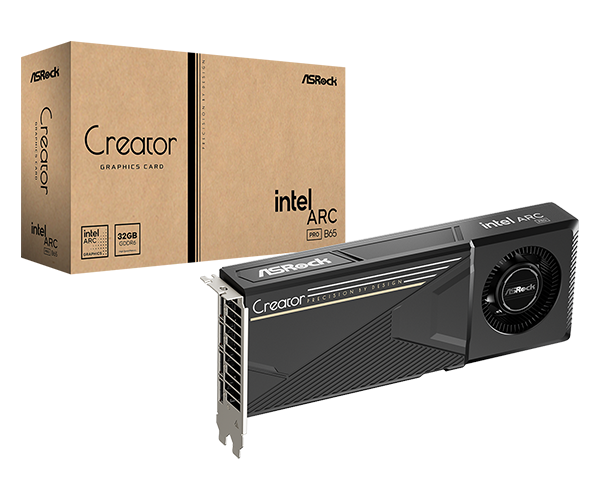
ASRock’s Intel Arc Pro B65 Creator 32GB makes a clear pitch to workstation buyers: it gives the graphics processor 32 GB of dedicated memory. That can be useful when a large scene, a demanding video project or a local AI model runs out of room on a smaller card. A Japanese availability report points to a November 27 release through authorized distributors. The manufacturer’s specifications are worth comparing today, while Canadian pricing and availability still need local confirmation.
The hardware at a glance
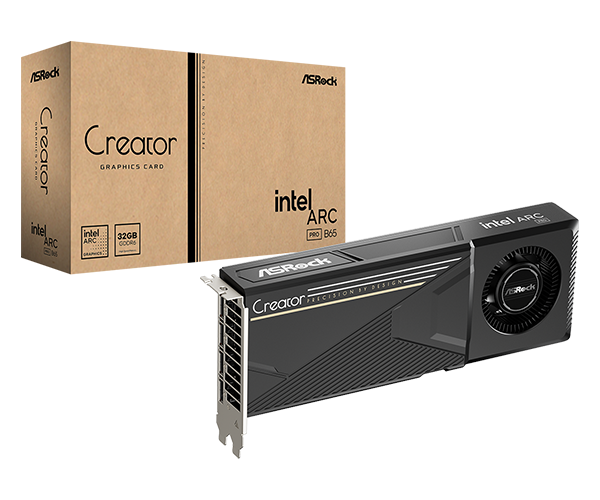
- Intel Arc Pro B65 graphics processor based on the Xe2-HPG architecture.
- 32 GB of GDDR6 graphics memory on a 256-bit bus.
- Two-slot design with a blower-style fan and vapour chamber.
- Four DisplayPort 2.1 outputs for compatible displays.
- PCI Express 5.0 support and a 12V-2×6 power connector.
When more graphics memory makes a difference
Graphics memory is where the GPU keeps data it needs quickly. In a 3D project that can include textures, geometry and the intermediate results of a render. A local AI workload also needs space for the model’s weights and for the information it processes during a session. Each application allocates memory differently, which is why the same card can feel roomy in one program and run into a limit in another.
Picture a scene with a handful of low-resolution textures that already renders smoothly. Giving it more memory may make little difference to the export time. Now imagine the scene grows into a detailed interior with several high-resolution surfaces, extra objects and a deadline that makes it inconvenient to split the project. If the original card runs out of dedicated memory, the larger capacity can let you keep working with fewer compromises. The value comes from what fits, and the time you save depends on the rest of the system and the software.
Think along similar lines if you are experimenting with a local AI model. The advertised parameter count gives you a starting point. The model format, runtime and length of the input change how much memory the session actually consumes. When you compare graphics cards, look for tests using the model and software you plan to use. A chart based on a different runtime can be informative, but compatibility and the ability to finish your own task deserve priority.
Check your case and your displays
A two-slot card still needs space along its length, at the power connector and around anything nearby that can obstruct airflow. Compare the measurements on the product page with your case specifications. In an existing PC, look for obstructions such as a drive cage or a radiator. Leave enough clearance to connect the power cable as specified by the manufacturer when the side panel is closed. If you are building from scratch, check the power supply and the recommended cable arrangement before ordering parts.
The blower-style cooler also deserves attention if you are building a PC that will sit near a microphone or in a quiet room. ASRock describes the cooling design, but the level of noise you hear depends on the workload, the case and the airflow around it. Seek measurements from a similar workstation setup before treating the cooler as a reason to buy. A card can suit a workstation under a desk even if a recording setup with the PC right beside the microphone would call for a different choice.
For monitors, list the inputs and resolutions you actually use. The B65 Creator provides four DisplayPort 2.1 outputs. If you rely on an HDMI display, check that any adapter you need supports the resolution and refresh rate you expect. The adapter that worked for an older office screen may have a different limit when connected to a sharper or faster display. Budget for the right cables or adapters alongside the card.
Measure the problem before you upgrade
Take a project you can run more than once and repeat a specific task. Export the same timeline or render the same image, and note the elapsed time and dedicated graphics memory use. Windows Task Manager can give you a rough starting point, while your application’s performance tools may tell you more. Keep the project and its settings so you can compare results with another computer or look for a benchmark that resembles the work you do.
A project that stops with a memory error presents one kind of bottleneck. A project that opens and edits smoothly but exports slowly could be held back by the rendering engine, codec, CPU or GPU acceleration support. If you know which symptom you are trying to solve, it is easier to judge a card with 32 GB alongside alternatives that offer less memory but may run your software faster.
Record the application and driver versions alongside the result. If you later repeat the test after updating the software, keep those runs separate. The extra detail is especially helpful when an application has recently added support for a graphics architecture or changed how it handles a particular export format.
A short checklist for Canadian buyers
- Confirm driver and application support for the tools you depend on. Include add-ons, codecs and rendering engines that matter to your work.
- Compare the card dimensions, power connection and display outputs with the PC you own or plan to build.
- Check local pricing and warranty when the card is listed. Do not treat a direct conversion of a Japanese price as a Canadian price.
- If gaming is your main use, compare real results in the games you play at your resolution and quality settings. Dedicated memory is one input to that choice.
The B65 Creator is worth a closer look if you can point to projects that already hit a graphics memory limit. The strongest reason to buy is a clear fit between the card, your applications and your workload. Until Canadian availability is confirmed, the most useful next step is to measure what your current PC does and identify how much of that work would benefit from the extra capacity.
Sources: ASRock product specifications and ASCII.jp’s PC hardware coverage of Japanese availability.