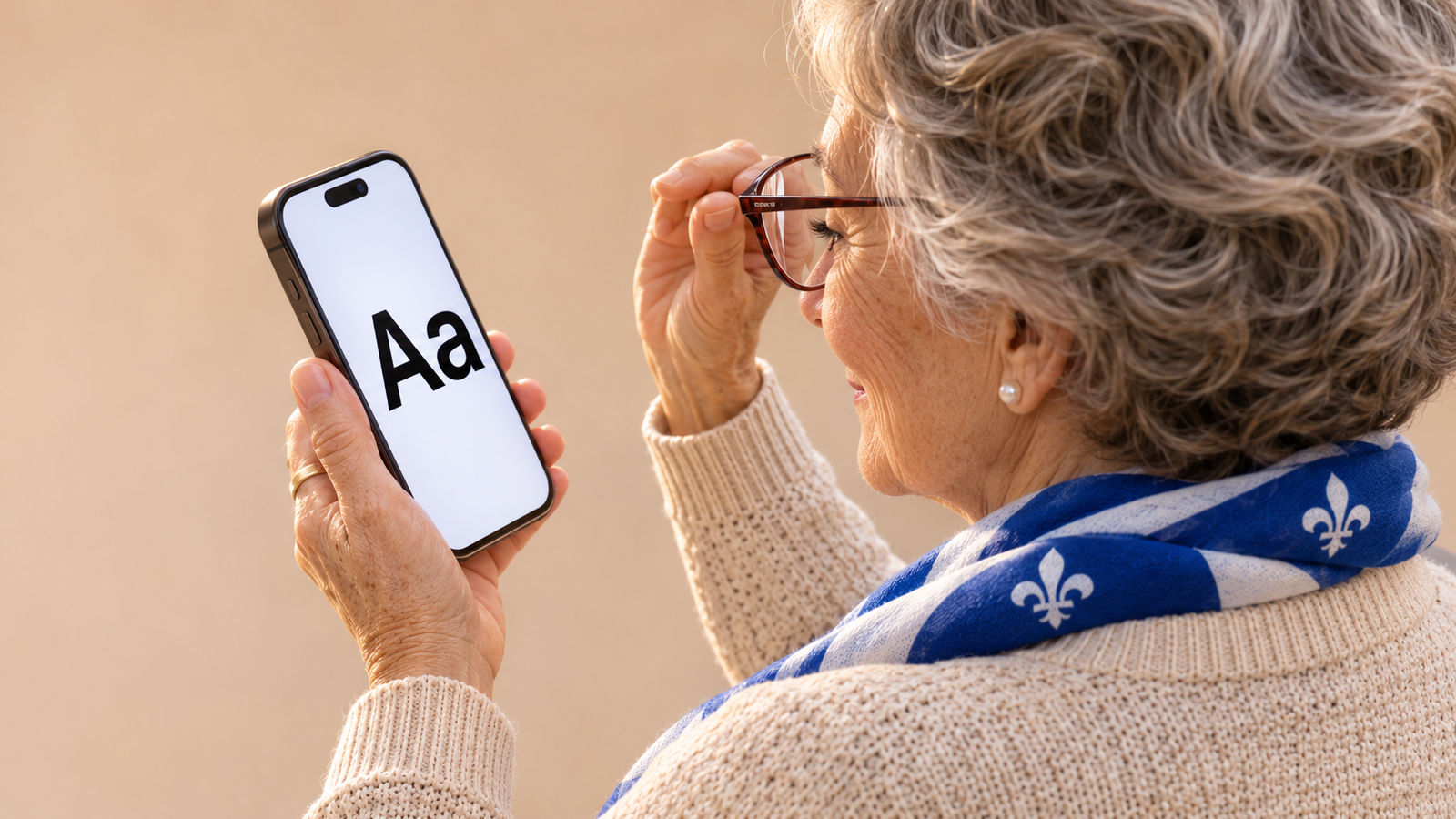
You can make the text on your iPhone easier to read without zooming every time you open a message.
Change the text size
- Open Settings, the app with the gear icon.
- Tap Accessibility, then Display & Text Size.
- Tap Larger Text. Move the slider to the right a little at a time. Turn on the larger accessibility sizes if you need more room to adjust.
- Open a message you have already received to see how the new size feels.
Make letters stand out
Try Bold Text in the same menu. If an app still looks the same, check its own display settings. You can return to the slider anytime to make the text smaller again.