
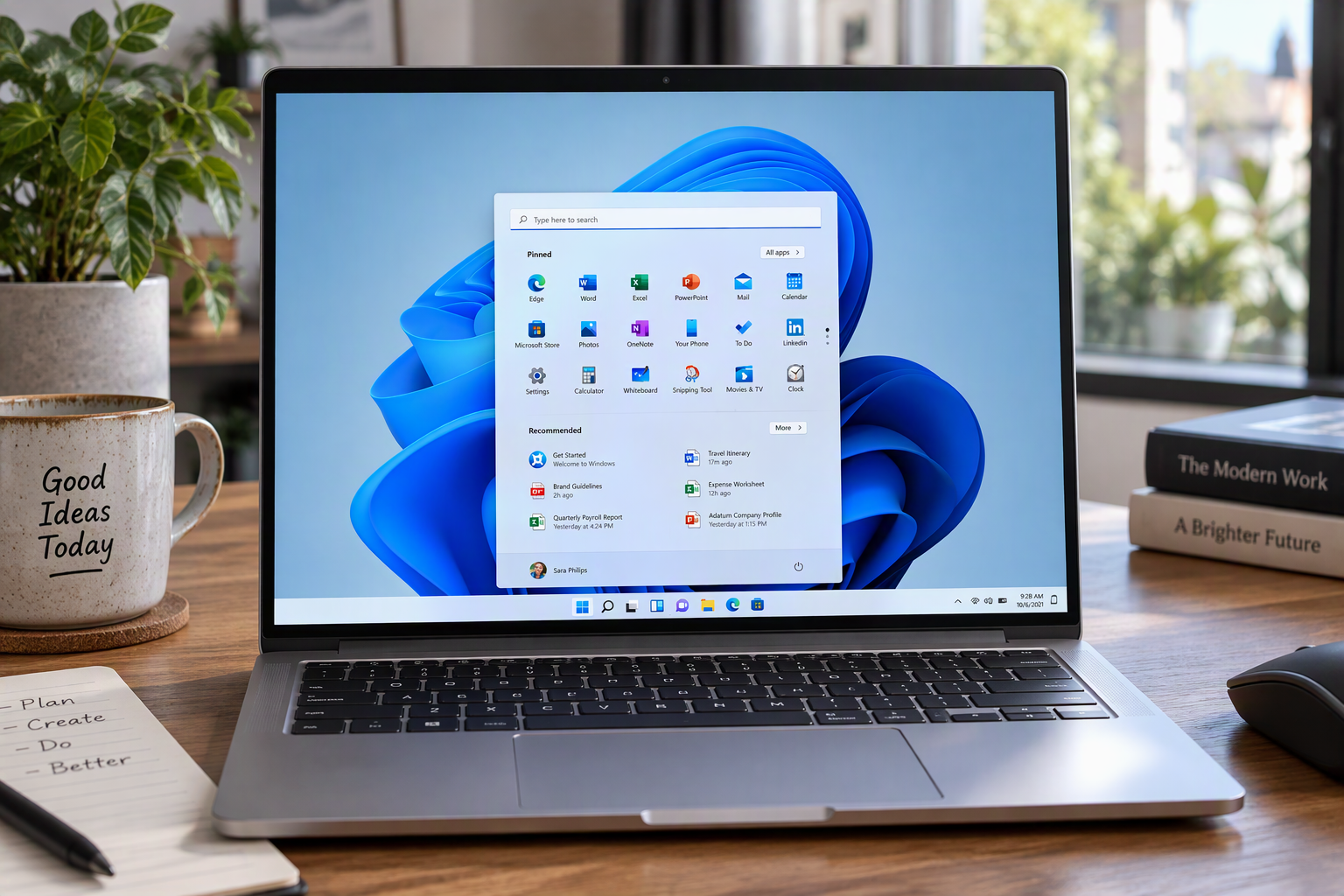
— Windows 11: 30 keyboard shortcuts that are genuinely useful
The best shortcuts are the ones that replace actions you repeat every day. This practical Windows 11 selection focuses on navigation, window management, screenshots and troubleshooting.
| Shortcut | Action |
|---|---|
Win + E |
Open File Explorer |
Win + I |
Open Settings |
Win + L |
Lock the PC |
Win + D |
Show or hide the desktop |
Win + S |
Open Windows Search |
Alt + Tab |
Switch between open apps |
Ctrl + Shift + Esc |
Open Task Manager |
Win + Z |
Open Snap layouts |
Win + Left/Right |
Snap the active window |
Win + Tab |
Open Task View |
Win + Ctrl + D |
Create a virtual desktop |
Win + Ctrl + Left/Right |
Switch virtual desktops |
Win + Shift + S |
Capture part of the screen |
Win + V |
Open clipboard history |
Win + . |
Open emoji and symbols |
Win + X |
Open the system tools menu |
Win + P |
Choose a second-screen mode |
Win + Ctrl + Shift + B |
Restart the graphics driver |
Learn three shortcuts tied to your routine, then add one each week. Microsoft notes that some combinations may behave differently depending on the application or keyboard layout.
Sources: Microsoft Support, “Keyboard shortcuts in Windows”; Microsoft Support, “Windows keyboard tips and tricks.”