A gaming monitor can look like a bargain and still be a poor fit for your PC. The refresh rate on the box is the most often the monitor can update. Your graphics hardware still has to produce the frames. Before comparing Black Friday prices, think about the games you play, the room you have on your desk and the kind of improvement you would actually notice. Those three things will help you decide whether to spend more on sharper detail or a higher refresh rate.
Which buyer profile fits you?
- Competitive PC player. Prioritize motion clarity. Consider 240 Hz if your games often approach that frame rate and you are comfortable with the resolution needed to get there.
- Single-player and exploration games. Start with detail and contrast. A 1440p or 4K image can be more rewarding than an extreme refresh rate if you typically play at a moderate pace.
- Console and home office. Check which modes your console can use over HDMI, then look at stand adjustment, text clarity and reflections. These are features you will use every day.
- Tight budget or older PC. Use a 24-inch 1080p screen as a baseline. Spend on the problem you already notice, such as an awkward stand or uneven motion, and check that the PC supports the improvement you want.
What each additional specification changes
- Panel and contrast. Contrast affects whether you can make out details in dark scenes. Compare a familiar game. If you spend much of the day reading, check text at your usual viewing distance as well.
- Pixel response. Slow transitions can leave trails behind moving objects. An overly aggressive setting can create halos. Look for tests in the mode you plan to use.
- HDR. It can add depth to compatible scenes with bright and dark areas. Check how the monitor handles those details in real games. A logo alone tells you little about the result.
- Connections. A single compatible input may be enough for one PC. If you also connect a console, check the modes available on each input and how easily you can switch between them.
Start with a game you already know
Choose a game you play often and turn on its frame-rate counter if it has one. Play through a busy section and note how much the frame rate varies. A quiet menu does not make a useful comparison. If the game often runs around 100 frames per second, a 240 Hz display will not make your PC produce 240 frames per second. There may be other reasons to choose that monitor, so compare those features on their own merits.
Repeat the test with another kind of game. A competitive shooter and an open-world game can have very different performance on the same computer. When you lower the resolution, take a moment to check how readable distant objects, menus and small interface elements look. The setting that gives you the highest frame count can come with a trade-off you will notice every time you sit down.
Choose a resolution you can use comfortably
- 1080p (1,920 × 1,080). A sensible starting point for a 24-inch screen or a PC that is already working hard in your favourite games. At a larger size and close viewing distance, you may notice softer detail.
- 1440p (2,560 × 1,440). Worth considering at around 27 inches if you want more detail alongside a relatively high frame rate. Test your games at this resolution first.
- 4K (3,840 × 2,160). Useful when fine detail matters, when the screen doubles as a workspace or when your graphics hardware can handle the extra work in your games.
1440p contains about 78 percent more pixels than 1080p. In turn, 4K contains 2.25 times as many pixels as 1440p. Those ratios tell you how much the image changes, but they do not directly predict frame rates. The processor, graphics settings and upscaling can shift the result. Measurements from the games you actually play are more informative than a single percentage.
Figure out when more hertz make sense
A 60 Hz display has an interval of about 16.7 milliseconds between refreshes. At 144 Hz it is about 6.9 ms, and at 240 Hz it is about 4.2 ms. Those are refresh intervals. They do not measure the entire delay between pressing a button and seeing the result. When you compare two high refresh rates, the difference in time between refreshes can be much smaller than the initial move from 60 Hz to a faster screen.
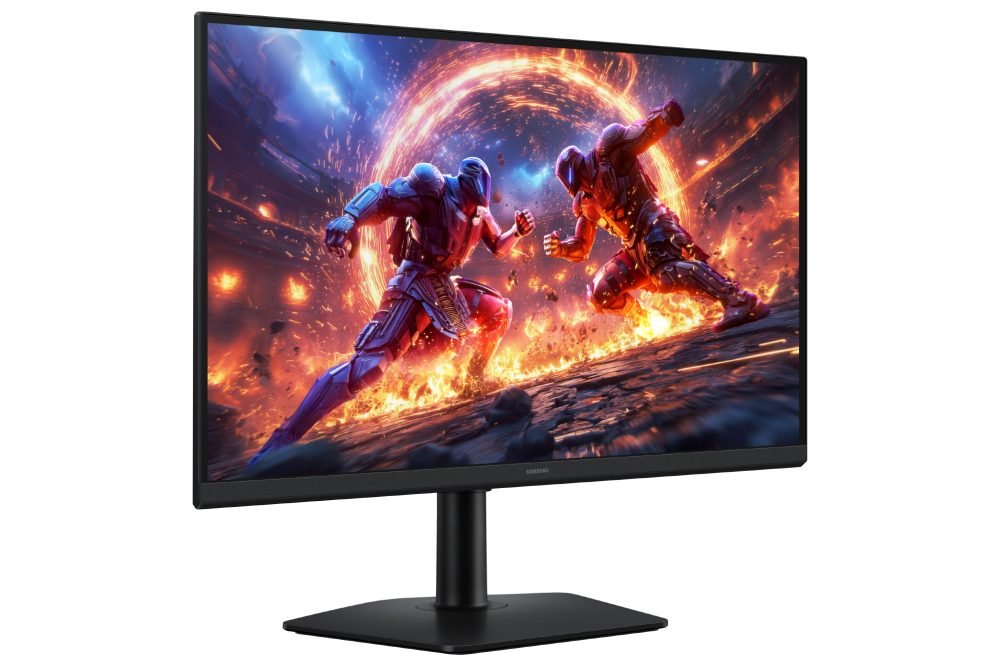
Samsung’s Odyssey G6 G60H is a useful example of how resolution and refresh rate can trade places. Samsung advertises up to 600 Hz at QHD or 1,100 Hz at HD. The photo shows a specialized display. Before paying for a mode like that, ask whether you would rather preserve small details or prioritize the fastest updates in a particular game. Samsung’s official product announcement.
Check the desk, stand and connections
Look at how much space the stand takes and whether you can set the panel at a comfortable height. If you use an arm, verify the mounting pattern and weight. If the display will serve for work too, check how small text looks and how much room light reflects off the screen. These are features you will encounter every time you use the monitor, even when you are playing a game that runs well below its maximum refresh rate.
Variable refresh rate can help when your game delivers frames at an uneven pace. Check whether it works with the graphics card or console you plan to connect and at which frequencies. Also compare the supported ports, cables and adapters. Similar-looking connectors can have different limits, and a dock sometimes prevents you from selecting the resolution and refresh combination you were planning to use.
Four checks before buying
- Measure performance in two games and pick a resolution your PC can run comfortably.
- Confirm the exact model number and the resolution and refresh rate it supports together on your chosen input.
- Compare total delivered prices in Canada and review the return terms for display defects.
- After setup, open Advanced display in Windows and check that the refresh rate you bought the screen for is actually selected.
When two monitors are close, choose the one that improves something you notice often. That might be a better stand on a crowded desk, sharper text on the screen you work at or smoother movement in the game you spend the most time playing. You will then know what the extra money buys, even if the specifications look similar at first glance.
Run a short acceptance test before putting the box away
Connect the monitor directly to your graphics card and select its native resolution. Set the refresh rate you intended to use, then revisit the same busy section of your game that you tested before buying. That gives you a more direct comparison than a different game or a new graphics preset. If the expected setting does not appear, check the manufacturer’s requirements for the specific input and cable before changing several things at once.
Spend a few minutes on a task you do every day as well. If you use the same screen for reading, try a document with small text. Check it at the distance you normally sit and under the light you use in the room. A reflection from a window might only be obvious during the afternoon. A stand that feels fine for five minutes might be more awkward once you move the keyboard into its usual place.
Keep the packaging while you do these checks. If a problem persists, write down the input, settings and circumstances in which it appears. Those details make it easier to compare the result with the retailer’s return terms.